How to automatically extract ZIP files on Windows
Three ways to automatically extract ZIP files on Windows as they land in Downloads: a PowerShell script, a scheduled task, and a rule that needs no code.
Written by the team building Quick File Organizer, folders that organize themselves, by your rules.
Windows can open a ZIP, but it will not automatically extract ZIP files for you. Every archive you download waits for a right-click, "Extract All", a folder choice, and then sits there next to its own extracted copy. If you download archives daily — fonts, assets, invoices, datasets — that is a lot of repeated clicking.
There are three ways to automatically extract ZIP files without touching them yourself. They differ in how much setup they need and in what happens to the archive afterwards.
Method 1: a PowerShell script
Expand-Archive is built into Windows 10 and 11. This script unpacks every ZIP
in Downloads into a folder with the same name, then moves the archive out of
the way:
$folder = "$env:USERPROFILE\Downloads"
$done = Join-Path $folder "Extracted archives"
New-Item $done -ItemType Directory -Force | Out-Null

Get-ChildItem $folder -Filter *.zip -File | ForEach-Object {
  $target = Join-Path $folder $_.BaseName
  Expand-Archive -LiteralPath $_.FullName -DestinationPath $target -Force
  Move-Item -LiteralPath $_.FullName -Destination $done
}
Two details are worth keeping. Extracting into $_.BaseName gives every
archive its own folder, so two ZIPs that both contain readme.txt do not
overwrite each other. And moving the ZIP instead of deleting it means a failed
or partial extraction costs you nothing.
Expand-Archive only reads .zip. For .7z or .rar you need 7-Zip installed
and its command-line tool in place of that one line.
Method 2: run it on a schedule
Save the script as C:\Scripts\unzip-downloads.ps1, then:
Create the task
Open Task Scheduler and choose Create Basic Task. Name it "Unzip Downloads".
Pick a trigger
Daily is the simplest. For something closer to automatic, edit the task afterwards and set it to repeat every 15 minutes.
Set the action
Start a program:
powershell.exe, with the arguments-NoProfile -ExecutionPolicy Bypass -File "C:\Scripts\unzip-downloads.ps1".
The limit of this method is timing. A scheduled task runs on the clock, not
when a download finishes. If it fires while a large ZIP is still downloading,
the browser's temporary file is ignored (it does not end in .zip yet), and
the archive is picked up on the next run.
Method 3: a rule, no script
If you would rather not maintain a script, a file organizer can do the same
job. In Quick File Organizer, a rule is a file type, a target folder and an
operation — and one of the operations is Extract Archive. A rule for .zip
with that operation unpacks archives from the folder you point it at. With
real-time monitoring (part of Pro), it happens as each download completes; in
the free version, it happens when you press Organize.
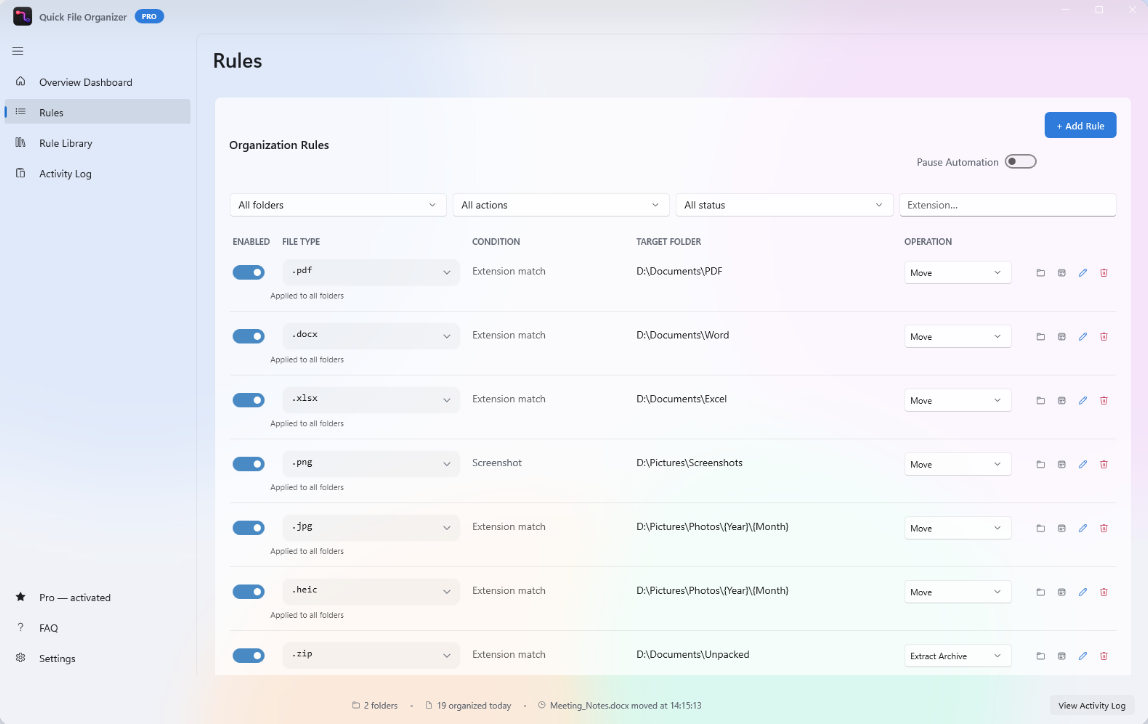
Every extraction is written to the activity log, so you can see what was unpacked and where it went.
Before you automatically extract ZIP files
Unpacking is not running, so extraction on its own is low risk. Still, three habits are worth having:
- Keep it to folders you fill yourself. Auto-extract your own Downloads, not a shared folder where anyone can drop an archive.
- Do not auto-open anything. Extract only. Whatever is inside should wait for you to look at it.
- Watch disk space. A 200 MB archive can unpack to several gigabytes. If the drive is tight, check what is taking up space first.
Once you automatically extract ZIP files, the next step is sending what was inside to the right place — see how to automatically move files.
Common questions
Can Windows 11 extract RAR and 7z files?
Yes, File Explorer in recent versions of Windows 11 opens .rar, .7z and
.tar archives. That is still a manual right-click, though, and the
PowerShell Expand-Archive command remains ZIP-only.
Should the ZIP be deleted after extraction?
Not immediately. Move it to a holding folder and clear that folder every month or so. If an extraction went wrong, you still have the original.
Why did my extracted files keep an old date?
Files inside an archive keep the modified date they had when it was created. This matters if you also run a clean-up by age — see how to automatically delete old files.